
| Training Notes - Building a Chart |
Essentially, building a Daisy Chart is a simple process, whereby several fields in the database are selected, their mapping types, format and order are defined, and the various nodes and links are then calculated and drawn.
Note that the database from the Software Test example will be used.
Daisy Charts are built in one of three ways :-
Always use this command on opening a new database. More...
Use this method when you are familiar with Daisy and the format of the database. More...
In Daisy 2003 an optional dialog has been added to the program, which asks which of the methods shown, you wish to use to create a Daisy Chart.
This dialog can be removed by checking the box at the bottom.
Note that it is always a good idea to define templates, as this greatly increases the power of Daisy.
Remember too, that a typical user is often analysing lots of databases, with the same format. If a set of templates have been defined then it is a simple action, with the various Template commands to locate every template that can be used directly on the data.
After clicking on the Quick Draw button, a dialog asks which type or chart you want to create.

As each type is selected, the dialog box gives a small image and brief notes on the chart. The Help also shows a fuller explanation.
As the database we have chosen is Software Test, we will draw a Date and Time version of the Daisy Chart.

Note that a Date and Time chart is based on mapping one date field as the Day of the Week and a time field as the Hour of the Day.
When OK is clicked, the dialog changes and you will be asked to select the field to be mapped as Day of the Week.

Note how the field is automatically previewed when it is selected in the list. The mapping is not applied in the preview.
Try using preview on a non-date field. Values will be shown, that obviously can't be mapped using a date mapping format, such as Day of the Week.
The time field is then selected.
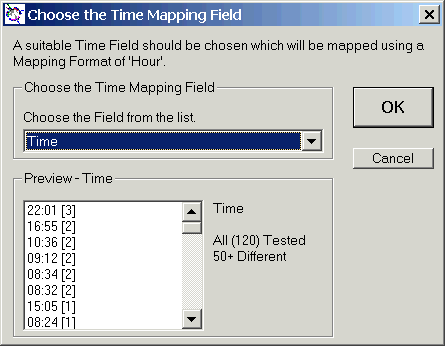
Two fields, Date and Time have now been selected.
Date will be mapped with a mapping format of Day of the Week, whilst Time will use Hour.
Once these two fields have been chosen the full Quick Draw Chart dialog is then shown.
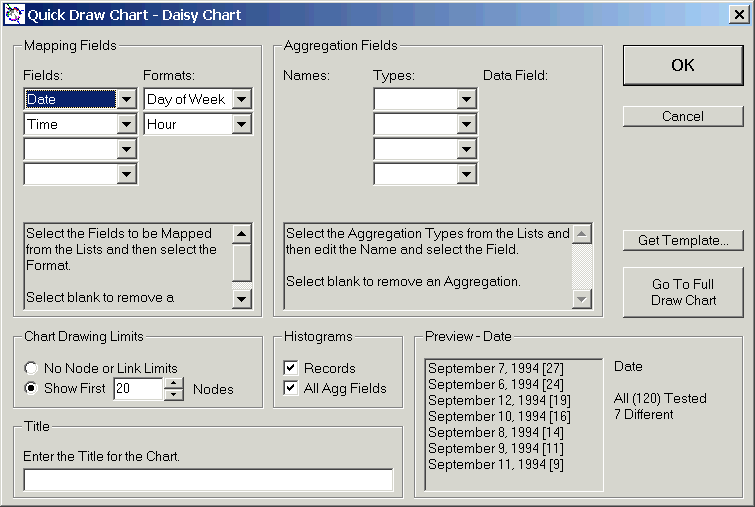
Note :-
Extra mapping fields added by selecting the fields in the pull-down lists and then selecting the format accordingly.

Connect has been mapped using Partition with a step value of 10 and Fault is mapped as simple Text.
This example shows the use of four of the most common mapping formats, Day of the Week, Hour, Partition and Text.
An aggregation field can also be added using the pull-down lists.
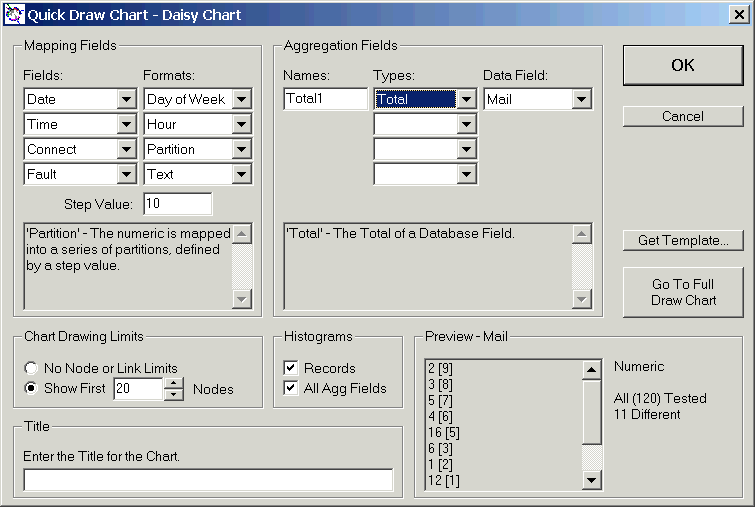
Here, the field, Mail, is aggregated using an aggregation type of Total.
This means that each node in the Daisy Chart will have a total of the field, Mail, for all the records that are mapped to that node.
The boring default name for the aggregation, Total1, can be easily changed by typing in a new one.
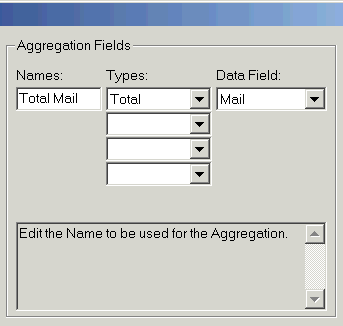
Here, Total Mail has been entered.
Once all of the settings have been entered, just click OK to draw the chart.

Note how the chart is not fully shown, as the chart window is too small. Other parts can be viewed by using the scroll-bars.
Exercise - Build a Chart Conversationally
Open a database with Daisy and draw a chart using Quick Chart Setup.
See Section 5 of the Daisy Manual.
The Draw Chart dialog is the main way to edit the settings for a Daisy Chart. Experienced users can also use it to build charts from scratch.

Note that because Daisy can't change any data in the original database, spend some time experimenting to get the exact Daisy Chart you want. You will not harm the original data.
The various command buttons of Draw Chart and what they control are listed.
| Mapping Fields | Mapping Fields, Types and Formats Mapping Titles Node Order Mapping Error Handling |
|
| Combine | Combined Field Node Order | |
| Aggregation Fields | Aggregations Totals, Averages Previous Values on Node Add, Subtract, Multiply Node Values |
|
| Weighting | Weighting Field and Type | |
| Selection | Selected Records | |
| Calculation | Links Drawn or not Combined Mapping |
|
| HTML Charts | HTML Charts | |
| Node Style | Full Size Nodes Histograms Chart and Node Size Ratios |
|
| Links Limits | Drawing Limits for Links | |
| Nodes Limits | Drawing Limits for Nodes | |
| Layout | Legend Drawn or not Titles Node and Histogram Keys Title and Key Fonts |
|
| Nodes and Links | Node Layout Node Fonts and Orientation Rules for Names in Node Boxes Aliases for Names in Node Boxes |
|
| Histograms | Histograms Node/Histogram Ratios Histogram Annotations or not Histogram Fill or not Histogram Scales |
|
| Colours | Node Colours Histogram Colours |
|
There is also an Index to everything to do with drawing charts.
Exercise - Build a Chart using Draw Chart
Open a database with Daisy and draw a chart using Draw Chart.
Daisy Templates are the standard method of saving the mapping fields, aggregations and other parameters used to draw a Daisy Chart, so that they can be used again and again.
Daisy Templates can be retrieved from two places; using Get Template in the Quick Chart Setup or directly using Get Template in the Draw menu.
The dialog below shows choosing a template for the Software Test example.

After the template has been retrieved, the Daisy Chart will be drawn.
Daisy Index |