
Investigating and Viewing Data
Daisy is a graphical, mouse-based system that has many ways to investigate the drawn Daisy or other charts, and the underlying database.
These include :-
Typical Chart
The graphic below shows a typical Daisy Chart.
The data is contained in the file, TelephoneCalls.txt, which is supplied with all copies of Daisy and was drawn using the Date and Time Analysis Template stored in TelephoneCalls.dyt.
It is very much a typical Daisy Chart, that shows the relationship between the Day of the Week and Hour of the Day for a series of telephone calls.
Note the boxes or Nodes, labelled Sun, Mon etc., which are the key to accessing the underlying data.
** Tip - Click the chart to see it full size in another window.
Using the Mouse
There are three main ways to use the mouse to investigate the Daisy Chart :-

It is often forgotten that the right click of the mouse is a very powerful feature in many Windows programs.
This is no exception in Daisy and depending on where the right click is invoked, you will get different popup menus tailored to the area of the click.
** Tip - Use the right click menus extensively!
Nodes
Click on any node in the chart and a detailed investigation window or dialog will be displayed.

Note 'Previous' and 'Next' which move from node to node.
Viewing Records
Click on 'Records' on the investigation window and they will be displayed in a simple Daisy Grid.
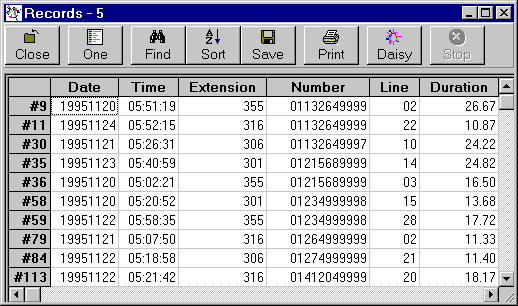
Note the buttons in the toolbar at the top of the grid.
Viewing Links
Click on 'Links' on the investigation window and they will be displayed in a simple Daisy Grid.

Note that by default links are shown in decreasing order of weighting.
More Than One Node
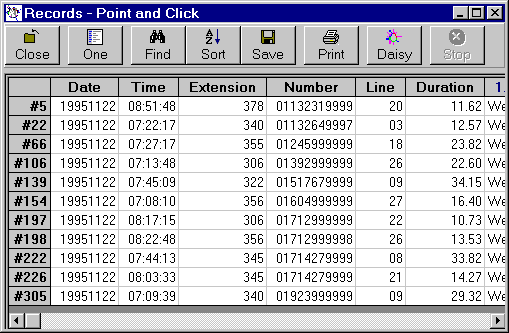
Often you might want to select data from the database, based on two or more nodes. A typical selection might be all records that are on a 'Wednesday' between 7 and 8.
Use the 'Point and Click' sub-command in the Selected Records command from the View menu and then follow the instructions. (Alternatively, you can use the Control-R keystroke.)
In most cases, you just click on the nodes you wish to be included in the selection (In this case 'Wednesday' and 7!) and then click anywhere on the background to actually perform the selection.
Searching the WWW
In Daisy Standard or more powerful versions, the investigation window can be augmented with extra buttons which can be used to search the World Wide Web.

'News' and 'Search' are used to get 'News' and a 'Search' about the node name.
'Map' which draws maps of the location can also be added. In this example, a map button would in inappropriate!
Conclusion
Experiment and have fun!
Click that mouse everyehere!
Remember that as Daisy can't change the database you are perfectly safe.