
Selecting Data
The three main methods are to select by Field Value, whether a record is shown in the Daisy Chart or by Point and Click.
A typical selection menu is shown.
This menu varies depending on the data and the version of Daisy.
Field Values
This is the conventional way to select records for drawing a chart.
Use to select records, which meet a particular criteria.
A typical selection dialog is shown.
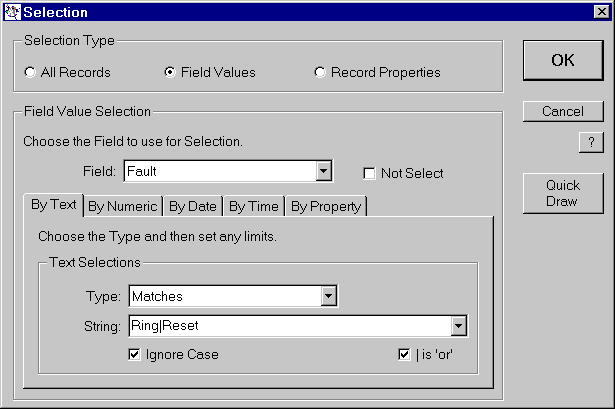
The example shows a Matches selection, which will select records for viewing if the database field, Fault matches 'Ring' or 'Reset'.
Note the use of the | operator to signify 'or'.
In Chart
This is a very powerful selection and is used to select all of the records, that are linked to any of the nodes in the Daisy Chart.
A Not In Chart selection is also available.
This is the preferred method of splitting a database into two. Perhaps those records known to be valid and those that may not be!
Point and Click
'Point and Click' is the simple mouse-based selection method, used to choose nodes, when viewing selected links, nodes and records.
Each node to be selected is pointed to with the mouse and then the left button is clicked to select that node. This is repeated until all nodes have been selected.
Clicking anywhere else, then causes the selection to be performed.
When selecting nodes, as in Selected Nodes, each of the nodes chosen will be added to the displayed Daisy Grid.
With records, as in Selected Records, all of the records, underlying each of the nodes in the same mapping field, are combined or 'or'ed together. Then only those records that are named for each mapping field will be displayed.